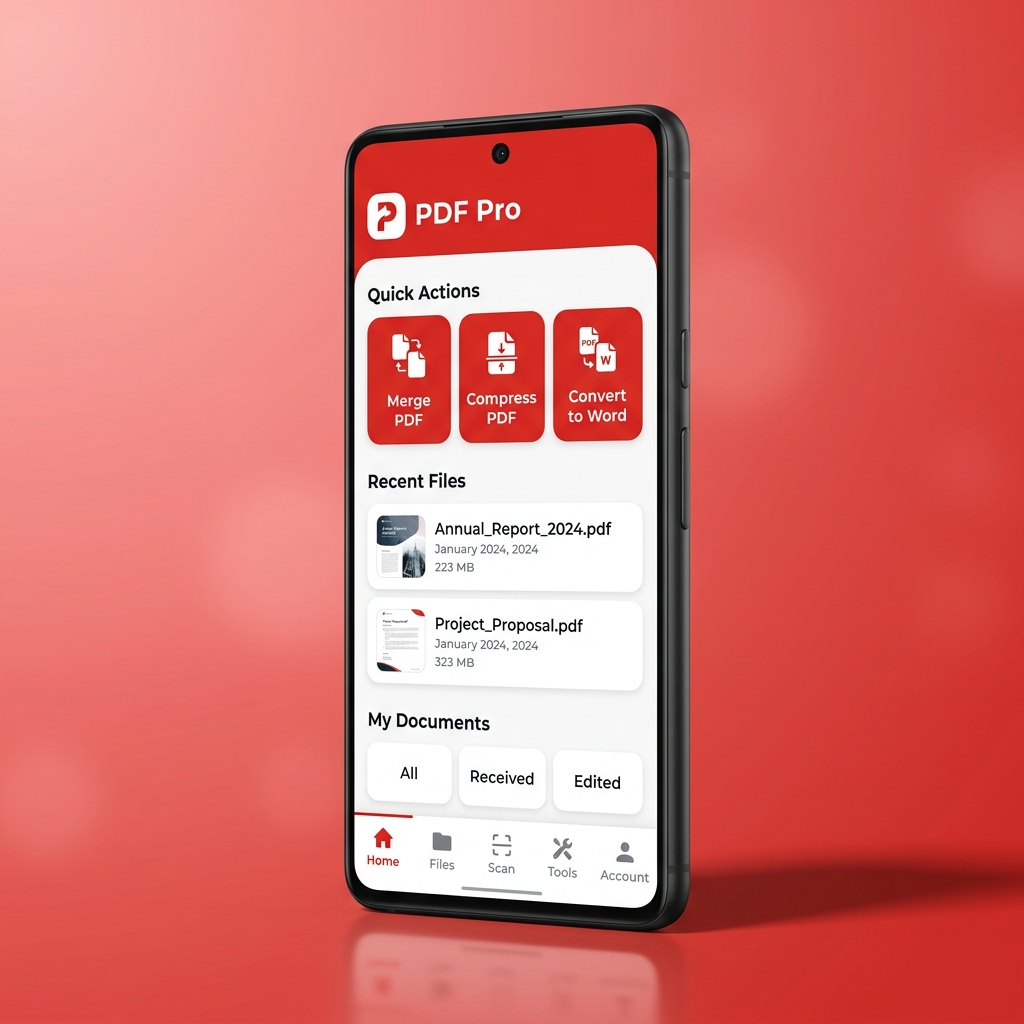
Few document tasks cause more frustration than converting a PDF into a Microsoft Word (`.docx`) file, opening the result, and finding that every line is trapped inside an uneditable floating text box, multi-column tables have collapsed into tab-separated gibberish, or the entire page is just a flat picture that you cannot type into at all.
Why is converting Word-to-PDF instantaneous and flawless, whereas converting PDF-to-Word is one of the hardest problems in document engineering? Once you understand how PDFs store text internally—and how modern AI layout reconstruction and OCR solve the reverse-conversion problem—you can get clean, editable Word documents every time.
1. The Technical Reason PDF-to-Word Conversion Is So Difficult
Microsoft Word (`.docx`) is a semantic flow format: it knows what a paragraph is, where a bulleted list begins, how a table flows across page breaks, and which headings belong to a style hierarchy. When you type a new sentence in the middle of Page 1, Word automatically reflows the rest of the document downward.
A PDF (ISO 32000), by contrast, is a page description language descended from Adobe PostScript. Internally, a standard PDF has no concept of "paragraphs," "sentences," or even "tables." Instead, a PDF is simply a list of absolute Cartesian coordinate instructions telling a renderer: "Draw glyph 'T' at X=72.0, Y=714.5; draw glyph 'h' at X=78.2, Y=714.5; draw a 0.5pt black line from (72, 680) to (540, 680)."
To convert a PDF back into a usable `.docx` file, the converter must perform reverse layout inference: grouping individual characters into words based on horizontal kerning gaps, grouping lines into paragraphs based on vertical leading, and detecting grid lines to reconstruct native Word table cells.
2. Digital-Born PDFs vs Scanned Image PDFs
Before converting any PDF to Word, identify which of the two PDF types you have—because they require completely different conversion engines:
| Diagnostic Test | Digital-Born (Vector Text) PDF | Scanned (Flat Raster Image) PDF |
|---|---|---|
| Can you highlight a single word with your cursor/finger? | Yes — individual characters highlight cleanly. | No — tapping selects the entire page as one picture. |
| What happens at 400% zoom? | Letter edges remain infinitely crisp. | Letter edges become blocky pixels. |
| Required Conversion Pipeline | Direct glyph-stream extraction + layout reflow reconstruction. | AI Optical Character Recognition (OCR) + table/column detection. |
| Expected Text Accuracy | 100% character accuracy (assuming standard Unicode CMaps). | 98%–99.5% on clean 300 DPI scans; lower on crumpled/skewed photos. |
3. Solving the 4 Most Common PDF-to-Word Formatting Glitches
- The "Every Line Is a Separate Text Box" Problem: Some basic converters prioritise exact visual positioning (`Fixed Layout Mode`) over editability by placing every line of text inside an absolute-positioned frame. If you intend to rewrite or expand paragraphs, always choose Flowing Text / Editable Layout mode so paragraphs wrap naturally when you type.
- Garbled Symbols When Copying or Converting (Missing `ToUnicode` CMap): Occasionally, a digital PDF looks perfectly readable on screen, yet converting it to Word produces random symbols (`!#$%&*`). This happens when the creator's PDF driver embedded custom glyph IDs without a `ToUnicode` mapping table. Running the file through PDF Tools AI's optical character recognition (OCR) mode bypasses the corrupted font table and reads the visual letterforms directly.
- Deskewing Mobile Camera Scans Before OCR: If you photographed a paper contract at a 15-degree angle under dim yellow room lighting, OCR accuracy drops sharply. Always crop the page borders, apply automatic perspective correction (deskew), and apply high-contrast document filtering before running OCR.
- Multi-Column Academic Papers & Newsletters: Two-column PDFs can fool basic extractors into reading straight across the page from the left column into the right column. Modern layout-aware engines segment vertical whitespace gutters first so each column flows sequentially.
For more tips on working with scanned files, read our deep dive on How AI OCR Technology Reads Scanned Documents.