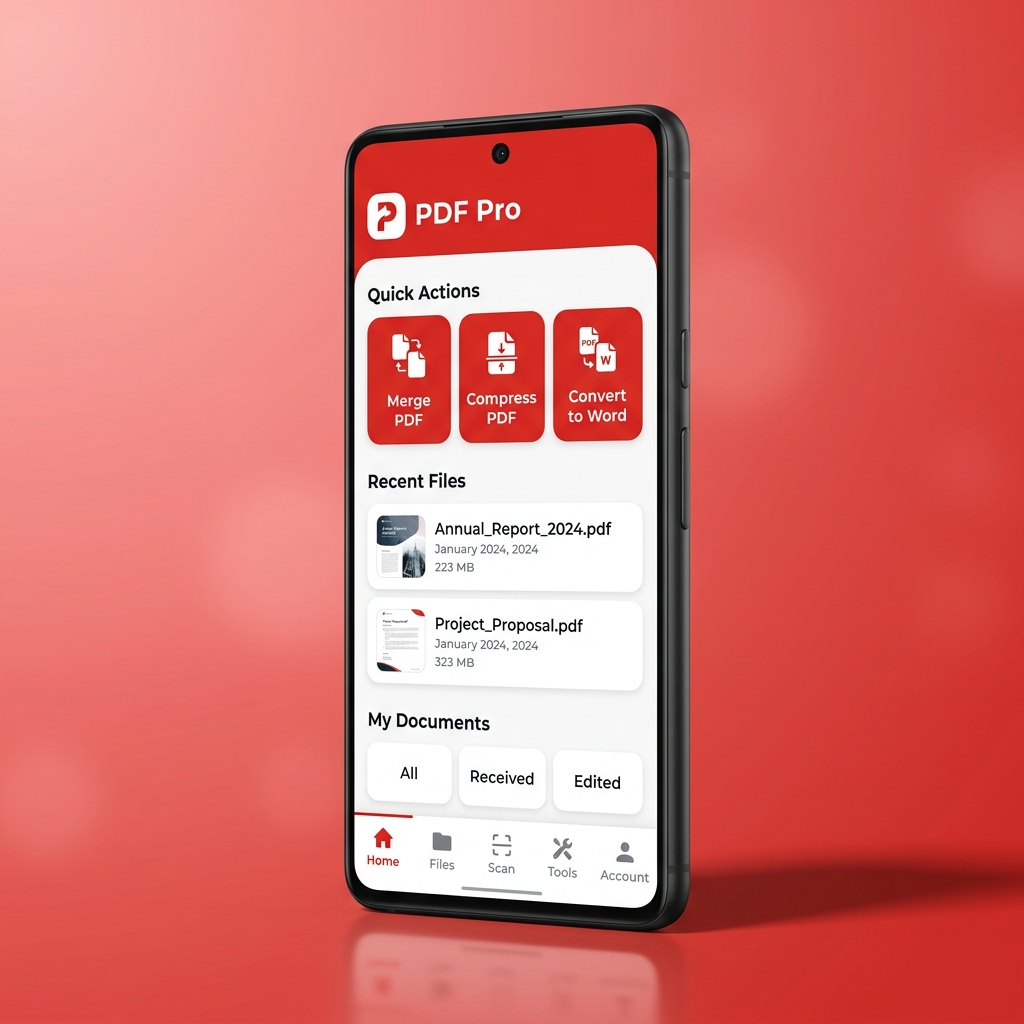
For decades, completing an official form meant printing a PDF on paper, filling in boxes with a ballpoint pen, signing the bottom line, scanning the pages back through a flatbed scanner, and emailing a crooked, grey-tinted image file. Today, whether you are signing a residential tenancy agreement, an HMRC tax authorisation, a freelance NDA, or a school permission slip, the entire workflow can be completed cleanly on your smartphone or tablet in under two minutes.
However, not all PDF forms are built the same way—and placing a signature improperly can leave your document editable by others or rejected by corporate compliance systems. Here is the complete technical guide to filling and signing PDF forms digitally across Android, iOS, and desktop platforms.
1. Interactive PDF Forms (AcroForms) vs Flat PDFs
When you open a PDF form on your phone, you are dealing with one of two internal document architectures:
- Interactive Fillable PDFs (AcroForms / XFA): Created in software like Adobe InDesign or LibreOffice Writer with dedicated form field objects (`NeedAppearances` dictionary entries). When you tap a line, a cursor appears automatiquement, checkboxes toggle cleanly, and dropdown menus open natively.
- Flat / Scanned PDFs: The form was exported without interactive form fields—or it is simply a scanned photograph of a paper form wrapped inside a PDF container. Tapping the lines does nothing unless your PDF app supports freeform text-box overlays and optical character recognition (OCR).
A capable mobile toolkit like PDF Tools AI handles both seamlessly: it natively parses interactive AcroForm fields when present, and allows you to place crisp, resizable text annotations and checkmarks at exact coordinates on flat or scanned PDFs.
2. Electronic Signatures vs Cryptographic Digital Signatures
People frequently use the terms "electronic signature" and "digital signature" interchangeably, but legally and technically they represent different levels of assurance under frameworks like the UK eIDAS Regulations, the Electronic Communications Act 2000, and the US ESIGN Act:
| Signature Tier | How It Works Technically | Tamper Detection | Common Everyday Use Cases |
|---|---|---|---|
| Simple Electronic Signature (SES) | A vector ink stroke drawn with a finger/stylus or a transparent PNG signature placed onto the PDF page stream. | Requires flattening the PDF so the layer cannot be dragged or deleted. | NDAs, freelance contracts, tenancy renewals, expense approvals, HR onboarding forms. |
| Advanced / Cryptographic Digital Signature (PAdES) | Computes a SHA-256 cryptographic hash of the PDF byte range and encrypts it using an X.509 private key certificate. | Modifying even a single character invalidates the cryptographic seal in PDF readers. | Notarised deeds, government procurement tenders, regulated financial filings. |
3. Step-by-Step: How to Fill and Sign a PDF on Your Phone
Follow this workflow to ensure your completed PDF looks professional and cannot be accidentally altered by the recipient:
- Open the Document Locally: Import the PDF from your email client or file manager into PDF Tools AI. Because processing happens on-device, confidential details (such as National Insurance numbers, passport numbers, or bank sort codes) are never uploaded to third-party cloud servers.
- Complete All Text Fields First: Tap each interactive field—or select the Text tool for flat PDFs—and enter your details using a clean sans-serif font (such as Helvetica or Roboto) at 10pt–12pt size. Use the `✓` symbol for checkboxes rather than drawing messy freehand crosses.
- Create Your Signature Vector: Select the Sign tool. Rotate your phone into landscape orientation and sign with your fingertip or a capacitive stylus. Landscape mode gives you three times the horizontal drawing width, eliminating the cramped, shaky handwriting look common on mobile signatures. Choose black or dark navy blue ink (`#0F172A` or `#1E3A8A`) for formal contracts.
- Position and Scale Precisely: Drag the signature over the signature line so the baseline of your handwriting sits slightly above the printed line, just as it would with a physical pen. Add the current date next to the signature.
- Flatten the Document Before Sending: This is the step most people forget. If you save an unflattened AcroForm, the recipient can click into your text boxes and edit the numbers or move your signature image. Flattening merges all form fields and signature annotations permanently into the static page content stream.
4. Protecting Signed Contracts with AES Encryption
Signed forms almost always contain Personally Identifiable Information (PII)—home addresses, signatures, tax references, or banking details. Before attaching a signed PDF to a standard unencrypted email, consider two final checks:
- Verify File Size: High-resolution scanned contracts often exceed 15 MB. Run a lossless or smart compression pass so your email isn't bounced by corporate mail servers.
- Add Password Protection for Sensitive Filings: If the form contains tax or banking credentials, apply 256-bit AES password protection in PDF Tools AI and share the password with the recipient via a separate channel (such as SMS or Signal). Read our full guide on Digital Signatures & Legal Validity for more details.